
This article explains how you can anonymize respondent personal data within a project so that you can maintain high security standards and minimize PII (Personally Identifiable Information) exposure to researchers.
Indeemo’s Respondent Identity Masking is a feature that anonymizes your respondent email addresses and redacts respondent last names on the Indeemo dashboard for researchers.
This ensures your team sees only what they need to see to conduct the research.
Respondent Identity Masking is one of two different privacy settings you can toggle on. Depending on your study's sensitivity, you can use them independently or together:
Respondent Identity Masking: Protects data identity by hiding last names and email addresses. Read this article to learn more.
Facial Blurring: Protects visual identity by automatically blurring faces in selfie video and photo responses. Learn more here
How it Works
Once enabled in the Target Group settings of your project, the platform manages visibility based on a user's role.
This allows for smooth onboarding while maintaining a redacted view for those analyzing the data.
- Moderators & Project Owners: You will see a masked view. Last names are redacted to the first letter (e.g. John P), and email addresses are anonymized to a secure format (e.g., jo***@gm***.com).
- Recruiters: To ensure smooth onboarding, Those with Recruiter level access retain visibility of the full email address in the dashboard, though last names remain redacted.
- Respondents: This process is invisible to participants. They register with their actual email and interact with the app as normal, unaware that masking is active for the research team.
- Observers: No change here. Observers never have access to respondent emails and last names are always redacted, across all Indeemo projects.
Step-by-Step Setup Guide
Step 1: Request Account Activation
This feature is an "add-on" that must first be activated on your account.
- Contact your Indeemo Account Manager to enable Respondent Identity Masking.
Step 2: Project Activation
Once activated on your account, you’ll see the option to enable it on a Target Group when you are creating a project.
- Navigate to the Target Group settings within your project.
- Locate the setting: Respondent Identity Masking.
- Check the box.
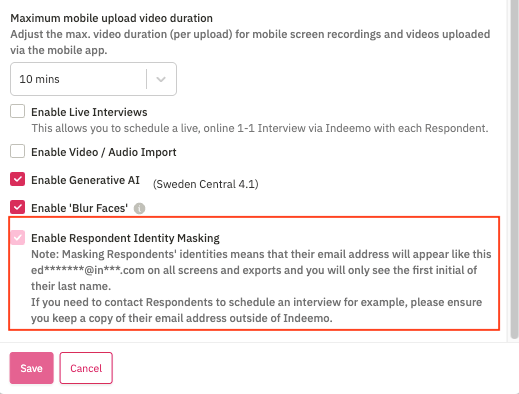
Warning: This setting is not retroactive. You must ensure the toggle is switched ON before any respondents join the project to ensure their data is masked.
Step 3: Onboard Respondents
- Invite respondents to your project as normal.
- The system will automatically anonymize the emails and redact the full names on the dashboard view for all Moderators.
Key Permissions Summary
|
Platform Role |
Can Enable Masking? |
View Full Email? |
View Full Name? |
|
Project Owner |
Yes |
No (Masked) |
No (Redacted) |
|
Moderator |
No |
No (Masked) |
No (Redacted) |
|
Recruiter |
No |
Yes |
No (Redacted) |
|
Observer |
No |
Never (no access) |
Never (Redacted) |
The Bigger Security Picture
Identity Masking is the researcher-facing layer of Indeemo’s security.
While this feature protects individuals within the study, our platform-level certifications (SOC 2 Type 2, HIPAA, GDPR) ensure the entire environment is secure.
For more detailed information on our global compliance standards, please visit the Indeemo Trust Centre.