
Alongside your open-ended tasks, you can now include survey tasks in your Indeemo task list.
This article helps you configure and use our newly launched Survey Tasks (beta). We’ve built 4 survey task types, so that you can capture structured, chart-ready data alongside your open-ended qualitative responses in a single, seamless participant flow.
Read the blog here Introducing survey tasks: structured questions, answered in context
The 4 Survey Task Types
Step-by-Step: Adding a Survey Task to Your Task List
View and Analyse Survey Responses
The 4 Survey Task Types
You can choose from four structured question formats: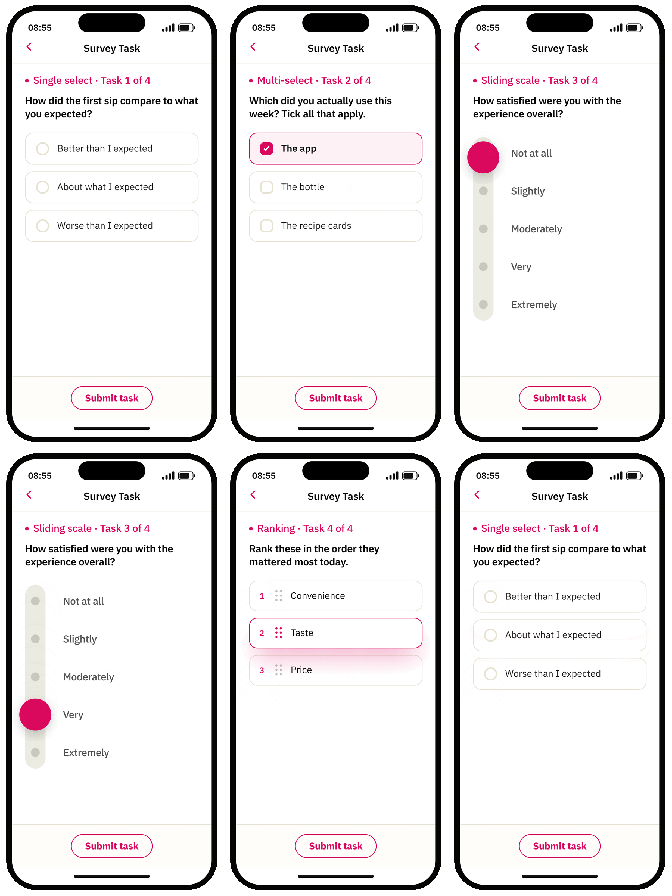
- Single Select: Participants choose exactly one answer from a predefined list. Best for forced-choice questions (e.g., "Which of these would you buy?").
- Multi Select: Participants select all options that apply. Best for identifying multiple overlapping choices or barriers (e.g., "Which barriers did you encounter?").
- Sliding Scale: Participants drag a slider along your defined scale (up to 11 points). Best for measuring agreement, satisfaction, or intensity.
- Ranking: Participants drag and drop a custom list of items into their order of preference. Best for trade-offs and priority testing.
Step-by-Step: Adding a Survey Task to Your Task List
1. Create the Task
- Go to Manage Projects and open your project's Task List.
- Click New Task (or Click here to add your first Task if starting a new list).
- Under Task Type, select Survey from the dropdown menu.
.png?width=647&height=375&name=Add%20Drop%20Shadow%20to%20Image%20Border%20(2).png)
2. Configure Your Task
- Enter your Task Title and Task Description just as you would for a standard video or photo task.
- Add your response options based on the chosen format:
- For Single/Multi Select: Input your custom answer choices.
- For Sliding Scale: Set your minimum and maximum values and customize the labels on each end (e.g., "Not at all satisfied" to "Extremely satisfied").
- For Ranking: Populate the exact list of items you want participants to drag into preference order.
- Click Save to update your project configuration.
3. Review Your Task List
Once saved, look at your task list. You will notice that next to the task name, the specific type of survey question is denoted by a unique icon.
View and Analyse Survey Responses
You will find all raw survey responses in your Dashboard view alongside your qualitative media uploads.
Dashboard Filtering
- In the Tasks filter, icons appear next to each task name to remind you of the task type.
Survey Graphs view (new)
Navigate to the new Survey Graphs tab in your Dashboard view to see the visual results.- Visual Charts: Single Select, Multi Select, and Sliding Scale inputs generate real-time bar, pie, or distribution charts automatically.
- Ranking Results: Ranking tasks display each participant's individual selection alongside an aggregated average rank.
Exporting Results
- Graph Exports: You can export the visual charts and graphs directly via the Export button on the Survey Graphs view.
- Dashboard Excel Export: Survey Task responses are fully integrated into your export, with each submission recorded on its own row under the relevant Task name. Answers appear in both the Caption column (formatted with line breaks for multiline choices) and the dedicated Survey Answer column (formatted cleanly as comma-separated values).
Analysing via AI View
- The Indeemo prompt library now includes some new, tailored prompts for analyzing survey data.
Latest App Version Required
Participants must download the latest version of the Indeemo app to see or complete these tasks. Please include this line in all participant onboarding and support messages:
"Please check that you have the latest version of the Indeemo App."